Convert Classroom Notes into Digital Text in Seconds (Step-by-Step Guide)

If you are typing your classroom notes manually on your computer to digitize them, you’re wasting your time. Because when something can be done in seconds, why spend hours on it?
There are many methods that you can use to convert your classroom notes into digital files, and it would only take a minute or less. Want to learn how?
Read this blog till the very end, and you will know. It explains several helpful methods you can use to instantly convert your notes into digital documents for easy access and editing.
How to Convert Classroom Notes into Digital Text?
Here, we will explore different methods for converting handwritten classroom notes into digital text using built-in smartphone features, online tools, and AI-based applications.
Method #1: Using Smartphone Built-in Feature
Modern smartphones now provide built-in features that can be used to extract text from an image and save it in a document file. For instance, iPhone offers the Live Text feature, which lets you extract text from any image. It is powered by advanced OCR, and you don’t need to use a third-party application for that.
On the other hand, in Android, you can upload the picture of your classroom notes into Google Lens, and it will extract the text from it. You can then save that text in Notepad or Google Docs.
Step-by-Step Guide
On iPhone:
Step-01:
First, you need to enable “Live Text” on your iPhone. It is only available in iOS 15 or later versions. Open Settings > General > Language & Region > Live Text. Toggle on this feature, and you will be able to use it on your phone.
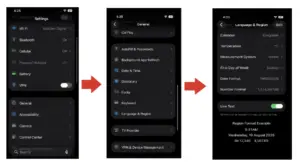
Step-02:
Now, go to your Photos app and open your handwriting notes pictures. Hold on to the text, and it will scan the area and let you copy the whole text or part of it.
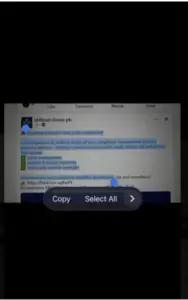
Step-03:
Select the text, go to your Google Docs or Notes, and paste it in there.
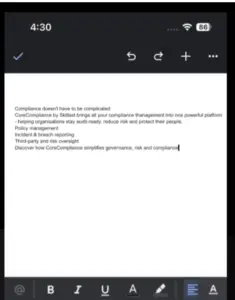
Do the same process for other pictures of your classroom notes, and within a few minutes, you will save them digitally for easy access and editing.
On Android:
- Go to your phone gallery and open your picture.
- Click on the “Share” button and share that picture to Google Lens, if the application is installed on your phone.
- Google Lens will analyze your picture, retrieve text, and allow you to copy it to the clipboard.
- You can then paste the copied text into your Google Docs and save it on your mobile phone.
Check the image below of how this whole process works.
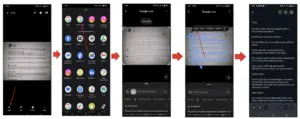
This is how you can digitize classroom notes on your Android quickly.
Method #2: Using Handwriting to Text Converter
If you’re using an iPhone that does not support iOS 15, or you don’t want to use any application on an Android phone, the best option is an online handwriting to text converter. Such a tool uses OCR (Optical Character Recognition) technology to identify text in images and convert them in editable format.
Step-by-Step Guide:
Here’s how you can use a text extraction tool to transform your physical notes into digital text.
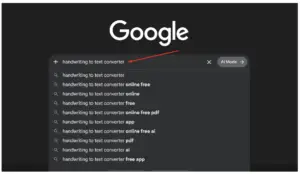
1. Find a Reliable Tool: Search “handwriting to text converter” or “image to text converter” on your browser, and you will see multiple options. Pick the one that suits you best. We have picked ImagetoTextOCR hanwriting to text converter for illustration purposes.
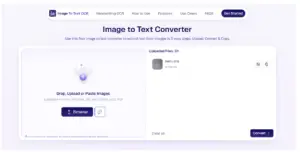
2. Upload your Images: You can upload multiple pictures at a time and extract text from them simultaneously. The tool also lets you drag and drop the picture, paste an image URL, or use your device’s camera to capture photos of physical notes (on mobile).
3. Let the Tool Do its Process: The tool will take some time to analyze text within an image, extract it in the same format, and provide you with the editable version.
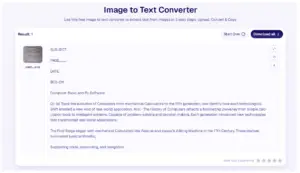
4. Copy the Text: You can then copy the extracted text, paste it into your Google Docs or Notepad, and save the file on your device or cloud storage for quick access.
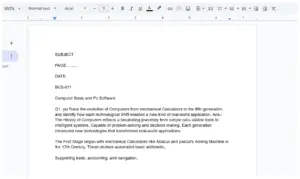
This is how you can use an online handwriting OCR tool to digitize your classroom notes in seconds.
Method #3: Using ChatGPT
You can use ChatGPT on your mobile or desktop to convert your handwritten notes into digital text. Compared to using a handwriting to text tool, this method will take a little time.
Step-by-Step Guide:
Here’s the step-by-step guide on how you can make use of ChatGPT to convert your handwritten classroom notes into digital text.
- Open ChatGPT and make sure you are signed in.
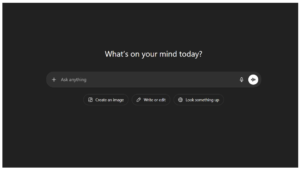
- There you will see a plus (+) icon. Click on it and you will see the “Add photos & files” option.
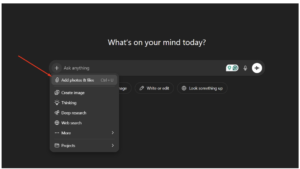
- Upload pictures of your classroom notes and make sure to number each page to keep the order.
- Add a prompt like “Transcribe these handwritten notes into digital text,” and hit the “Enter” button.
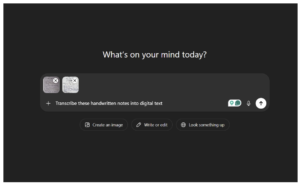
- ChatGPT will automatically understand the text within the image and provide the extracted text.
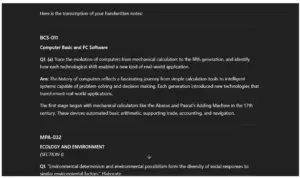
- Copy the retrieved text and paste it into your Notepad or Google Docs.
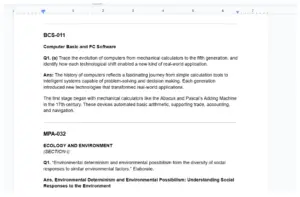
This is how you can use ChatGPT to convert your classroom notes into digital text instantly.
Useful Tips to Efficiently Convert Classroom Notes into Digital Text
Here are some tips that you must keep in mind while digitizing your handwritten text notes:
- Always take clear, high-resolution photos of your notes.
- Ensure proper lighting to improve text recognition accuracy.
- Keep pages flat and avoid shadows or folds in images.
- Organize images in the correct order before converting.
- Double-check the extracted text for minor OCR errors.
- Save your final files in cloud storage for easy access anytime.
Final Thoughts
Digitizing your classroom notes has never been easier or faster thanks to modern tools like smartphone OCR features, online converters, and AI-based solutions such as ChatGPT. Instead of spending hours typing everything manually, you can now convert handwritten notes into editable digital text within minutes. The above-discussed methods not only save time but also improve the organization and accessibility of your study material. So, pick the method that fits your device and start transforming your notes into smart, searchable digital documents today.